Node.js is great at handling asynchronous I/O. It's not great at serving static files, terminating SSL, load balancing, or rate limiting. These are problems that C-based servers like Nginx solve orders of magnitude more efficiently than anything you'll write in JavaScript. A reverse proxy isn't optional infrastructure -- it's the difference between a hobby project and a production system.
I learned this the hard way. Back in 2019, I deployed a Node.js app on a VPS, directly exposed on port 80. It worked fine during development and the first few weeks of production. Then we got featured on a tech newsletter. Traffic spiked from 100 requests per minute to 4,000. The app didn't crash from application logic -- it choked on serving images, handling TLS, and dealing with slow clients that held connections open for seconds. Nginx would have handled all of that without breaking a sweat.
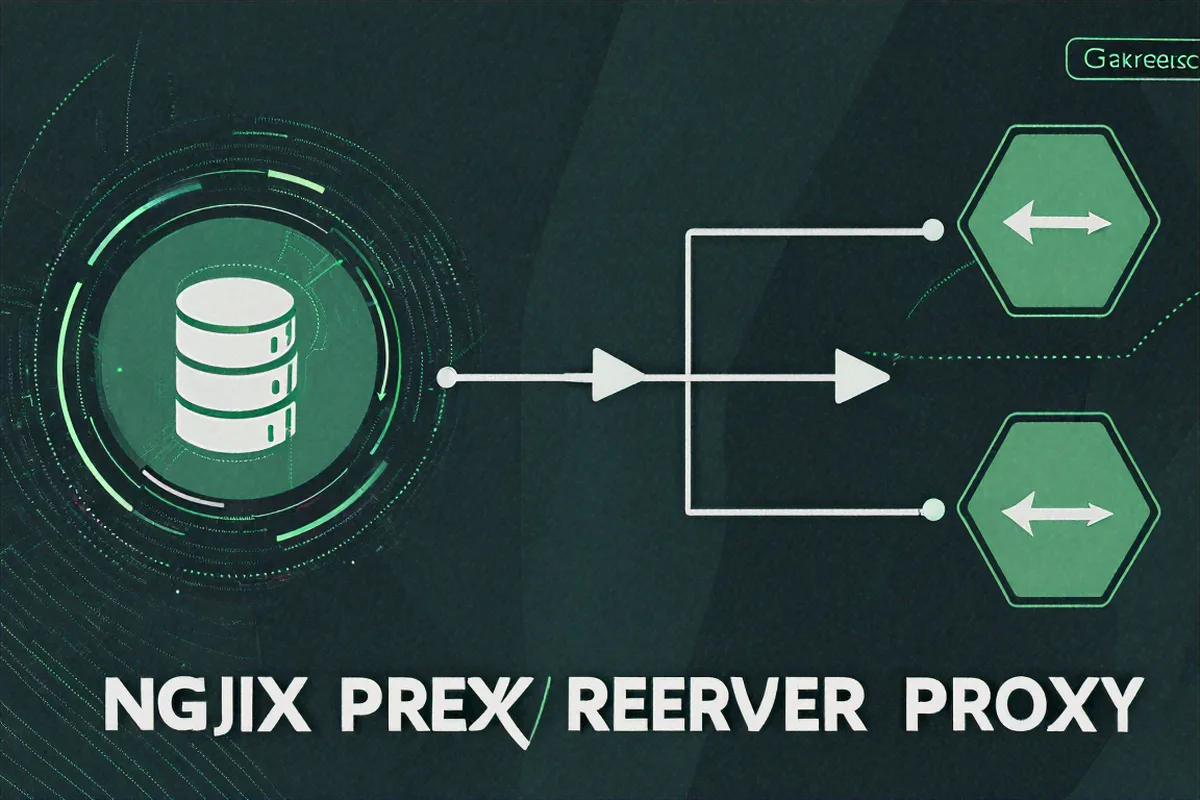
Here's the architecture: the internet connects to Nginx on ports 80/443. Nginx handles SSL, serves static assets from disk, compresses responses, enforces rate limits, and forwards only application requests to your Node.js processes on localhost. Your Node app sees plain HTTP on port 3000 and focuses on what it's good at -- running your application logic.
Why Put Nginx in Front of Node.js
The performance difference is real. Nginx serves a static file in microseconds using the sendfile system call -- zero-copy from disk to network socket. Express's express.static() takes milliseconds -- it goes through the event loop, file system callbacks, and the JS runtime. For one request it doesn't matter. For thousands of concurrent requests, it matters a lot.
I once benchmarked this on a $5 VPS. Nginx serving a 200KB image: 12,000 requests per second. Express serving the same image: 800 requests per second. That's a 15x difference, and it gets worse under load because every static file request in Express consumes event loop time that could be running your actual application code.
Beyond performance: SSL termination in Nginx means your event loop doesn't handle TLS handshakes. Rate limiting at the proxy layer means bad traffic never reaches your app. Load balancing across multiple Node processes happens transparently. And when you need to add caching, URL rewriting, or WebSocket proxying, it's a config change, not a code change.
There's also a security angle people don't talk about enough. When Node.js is directly exposed to the internet, any vulnerability in the HTTP parser or your application is directly exploitable. Nginx acts as a buffer. It normalizes requests, rejects malformed headers, and limits request body sizes before anything reaches your app. That's defense in depth, and it matters.
Installing and Starting Nginx
On Ubuntu/Debian, installation is straightforward:
sudo apt update
sudo apt install nginx
sudo systemctl enable nginx
sudo systemctl start nginx
After installing, verify it's running by visiting your server's IP address in a browser. You should see the default Nginx welcome page. The main config file lives at /etc/nginx/nginx.conf, but you'll typically work with site-specific configs in /etc/nginx/sites-available/ and symlink them to /etc/nginx/sites-enabled/.
sudo nano /etc/nginx/sites-available/myapp.conf
sudo ln -s /etc/nginx/sites-available/myapp.conf /etc/nginx/sites-enabled/
sudo rm /etc/nginx/sites-enabled/default
sudo nginx -t
sudo systemctl reload nginx
That nginx -t command is your best friend. Run it every single time before reloading. I've seen engineers reload nginx without testing, bring down a production site with a syntax error, and then panic because they can't SSH in fast enough to fix it. The test command takes half a second. Use it.
Basic nginx.conf Setup and proxy_pass
The core directive is proxy_pass -- it tells Nginx to forward requests to your Node app:
server {
    listen 80;
    server_name myapp.example.com;

    location / {
        proxy_pass http://127.0.0.1:3000;
        proxy_http_version 1.1;
        proxy_set_header Upgrade $http_upgrade;
        proxy_set_header Connection 'upgrade';
        proxy_set_header Host $host;
        proxy_set_header X-Real-IP $remote_addr;
        proxy_set_header X-Forwarded-For $proxy_add_x_forwarded_for;
        proxy_set_header X-Forwarded-Proto $scheme;
        proxy_cache_bypass $http_upgrade;
    }
}
Those proxy_set_header lines are critical. Without X-Real-IP, every request appears to come from 127.0.0.1 -- your rate limiting is broken, your logging is useless. Without Host, your app doesn't know which domain was requested. Without X-Forwarded-Proto, your app thinks everything is HTTP and generates wrong redirect URLs.
In Express, set app.set('trust proxy', 1) so it reads these headers correctly. The 1 means "trust one level of proxy." If you're behind both a CDN and Nginx, you'd use 2. Never set it to true without understanding what you're allowing -- it trusts any proxy, which means an attacker can spoof the X-Forwarded-For header from the client side.
And always run nginx -t before reloading -- it validates your config and prevents you from taking the server offline with a typo.
Upstream Blocks and Load Balancing
Multiple Node.js processes need traffic distribution:
upstream nodejs_cluster {
    least_conn;
    server 127.0.0.1:3000;
    server 127.0.0.1:3001;
    server 127.0.0.1:3002;
    server 127.0.0.1:3003;
}
I recommend least_conn over round-robin for most Node.js apps. If one endpoint takes 500ms and another takes 20ms, round-robin can overload one process while others sit idle. least_conn sends requests to the server with fewest active connections.
You'll typically want one Node process per CPU core. On a 4-core machine, that's four processes. PM2 makes this easy with pm2 start app.js -i max. Each process listens on a different port, and the upstream block distributes across all of them.
For health checks, add max_fails and fail_timeout:
upstream nodejs_cluster {
    least_conn;
    server 127.0.0.1:3000 max_fails=3 fail_timeout=30s;
    server 127.0.0.1:3001 max_fails=3 fail_timeout=30s;
    server 127.0.0.1:3002 max_fails=3 fail_timeout=30s;
    server 127.0.0.1:3003 max_fails=3 fail_timeout=30s;
}
If a server fails 3 times within 30 seconds, Nginx marks it as unavailable and stops sending traffic to it. After 30 seconds, it tries again. This means if you restart one Node process, traffic automatically routes to the other three while it's coming back up. Zero-downtime deployments become possible without any application-level coordination.
ip_hash provides session affinity but is a band-aid. Use Redis for sessions instead and let Nginx use least_conn for optimal distribution.
SSL Termination with Let's Encrypt
Nginx handles all TLS encryption so your Node app deals with plain HTTP:
server {
    listen 80;
    server_name myapp.example.com;
    return 301 https://$server_name$request_uri;
}

server {
    listen 443 ssl http2;
    server_name myapp.example.com;

    ssl_certificate /etc/letsencrypt/live/myapp.example.com/fullchain.pem;
    ssl_certificate_key /etc/letsencrypt/live/myapp.example.com/privkey.pem;
    ssl_protocols TLSv1.2 TLSv1.3;
    ssl_session_cache shared:SSL:10m;
    ssl_stapling on;
    ssl_stapling_verify on;

    add_header Strict-Transport-Security "max-age=63072000; includeSubDomains" always;

    location / {
        proxy_pass http://nodejs_cluster;
        # ... proxy headers ...
    }
}
A couple of things worth explaining here. The first server block on port 80 does nothing but redirect to HTTPS. Every HTTP request becomes HTTPS immediately. The http2 flag enables HTTP/2, which gives you multiplexed requests and header compression for free -- significant performance improvement for SPAs that load many small assets.
The ssl_session_cache directive stores TLS session parameters so repeat visitors skip the full handshake. A 10MB cache holds about 40,000 sessions. ssl_stapling means Nginx pre-fetches the OCSP response from the certificate authority, so browsers don't have to make a separate request to verify your cert isn't revoked. Small detail, noticeable performance impact.
The HSTS header tells browsers to always use HTTPS for your domain. Once a browser sees this header, it won't even try HTTP for the next two years (63072000 seconds). Be careful with this -- if you ever need to go back to HTTP, you can't until that timer expires for every browser that visited your site.
Set up auto-renewal -- Let's Encrypt certs expire every 90 days:
0 3 * * * certbot renew --quiet --post-hook "systemctl reload nginx"I've seen production sites go down because someone forgot auto-renewal. The cert expires at 2 AM, nobody notices until morning, and now you've got a "Your connection is not private" warning scaring away every visitor. Add a monitoring check for cert expiry too. Something that alerts you when the cert has less than 14 days left.
Gzip Compression and Static Caching
Free performance gains -- 60-80% bandwidth savings for text-based responses:
gzip on;
gzip_comp_level 6;
gzip_min_length 256;
gzip_types text/plain text/css application/javascript application/json image/svg+xml;
gzip_comp_level 6 is the sweet spot. Level 9 uses 3x the CPU for maybe 2-3% better compression. I tested this with our API responses -- level 6 compressed a 45KB JSON payload to 8KB. Level 9 compressed it to 7.8KB. Not worth the CPU.
The gzip_min_length 256 setting is important too. Compressing tiny responses actually makes them bigger because of gzip headers. Anything under 256 bytes is better left uncompressed.
Serve static assets directly from Nginx:
location ~* \.(jpg|jpeg|png|gif|ico|svg|woff|woff2|css|js)$ {
    root /var/www/myapp/public;
    expires 1y;
    add_header Cache-Control "public, immutable";
    access_log off;
}
The immutable flag tells browsers not to even revalidate. Use cache-busting filenames (like app.a3f8b2.js) and you can cache aggressively. The access_log off is a minor optimization but adds up -- writing a log entry for every image request wastes disk I/O on information you don't need.
One gotcha I hit: make sure the location block for static files comes before the location / block with proxy_pass, or use the regex match shown above. Nginx processes location blocks in a specific order, and you want static file requests handled by Nginx directly, not proxied to Node.
Rate Limiting
Nginx rate limiting is handled before requests reach Node.js:
limit_req_zone $binary_remote_addr zone=general:10m rate=10r/s;
limit_req_zone $binary_remote_addr zone=login:10m rate=1r/s;

location / {
    limit_req zone=general burst=20 nodelay;
    proxy_pass http://nodejs_cluster;
}

location /api/auth/login {
    limit_req zone=login burst=5;
    proxy_pass http://nodejs_cluster;
}
The burst with nodelay processes burst requests immediately -- good for page loads that fire 15 requests at once. The login endpoint without nodelay intentionally throttles rapid attempts.
The 10m zone size stores about 160,000 IP addresses. If you're handling more unique IPs than that, bump it up. When the zone fills up, oldest entries get evicted, which means rate limiting stops working for those IPs. I've seen this happen during a DDoS where the attacker used hundreds of thousands of unique IPs -- the zone filled up and the rate limiting became useless. For serious DDoS protection, you need Cloudflare or AWS WAF in front of Nginx.
You can also return custom error pages for rate-limited requests instead of the default 503:
limit_req_status 429;

error_page 429 /rate_limit.html;
location = /rate_limit.html {
    root /var/www/myapp/errors;
    internal;
}
Returning a 429 (Too Many Requests) is more semantically correct than a 503 (Service Unavailable), and well-behaved clients will respect the Retry-After header if you include one.
WebSocket Proxying
WebSockets need special handling or they silently fail:
map $http_upgrade $connection_upgrade {
    default upgrade;
    ''      close;
}

location /ws/ {
    proxy_pass http://nodejs_cluster;
    proxy_http_version 1.1;
    proxy_set_header Upgrade $http_upgrade;
    proxy_set_header Connection $connection_upgrade;
    proxy_read_timeout 86400s;
    proxy_send_timeout 86400s;
}
The 86400s timeout (24 hours) prevents Nginx from killing idle connections. The default 60s timeout causes mysterious disconnects that are incredibly frustrating to debug. I spent an entire afternoon chasing phantom WebSocket disconnects before realizing the default Nginx timeout was the culprit. The app logs showed no errors. The client-side reconnection logic kept firing. Everything looked like a network issue until I added Nginx access logging for the WebSocket location and saw the 499 status codes.
For Socket.IO specifically, you need session affinity (ip_hash) or the Redis adapter, because Socket.IO's polling-to-WebSocket upgrade requires the same backend process for both phases. If the polling request goes to process A and the upgrade request goes to process B, the handshake fails silently.
Debugging Common Nginx + Node Issues
When things go wrong -- and they will -- here's where to look.
502 Bad Gateway means Nginx can't reach your Node process. Either Node isn't running, or it's on a different port than what proxy_pass specifies. Run curl http://127.0.0.1:3000 from the server to check if Node is actually responding.
504 Gateway Timeout means Node is responding too slowly. The default proxy_read_timeout is 60 seconds. If you have long-running requests (file uploads, report generation), increase it for those specific locations:
location /api/reports {
    proxy_pass http://nodejs_cluster;
    proxy_read_timeout 300s;
}
413 Request Entity Too Large means the request body exceeds Nginx's default 1MB limit. Increase it with client_max_body_size:
location /api/upload {
    client_max_body_size 50m;
    proxy_pass http://nodejs_cluster;
}
The Nginx error log at /var/log/nginx/error.log is more useful than most people realize. I keep a terminal open with tail -f /var/log/nginx/error.log during deployments. It tells you exactly what's wrong -- config syntax errors, upstream failures, SSL issues -- in plain English.
One final tip: add a /health endpoint to your Node app that returns a simple 200, and configure your monitoring to hit it through Nginx. This validates the entire chain -- Nginx is running, it can reach Node, and Node is responding. If that health check fails, you know exactly where to start investigating.


Comments (0)
No comments yet. Be the first to share your thoughts!